Project by data cleaning with power query
تفاصيل العمل
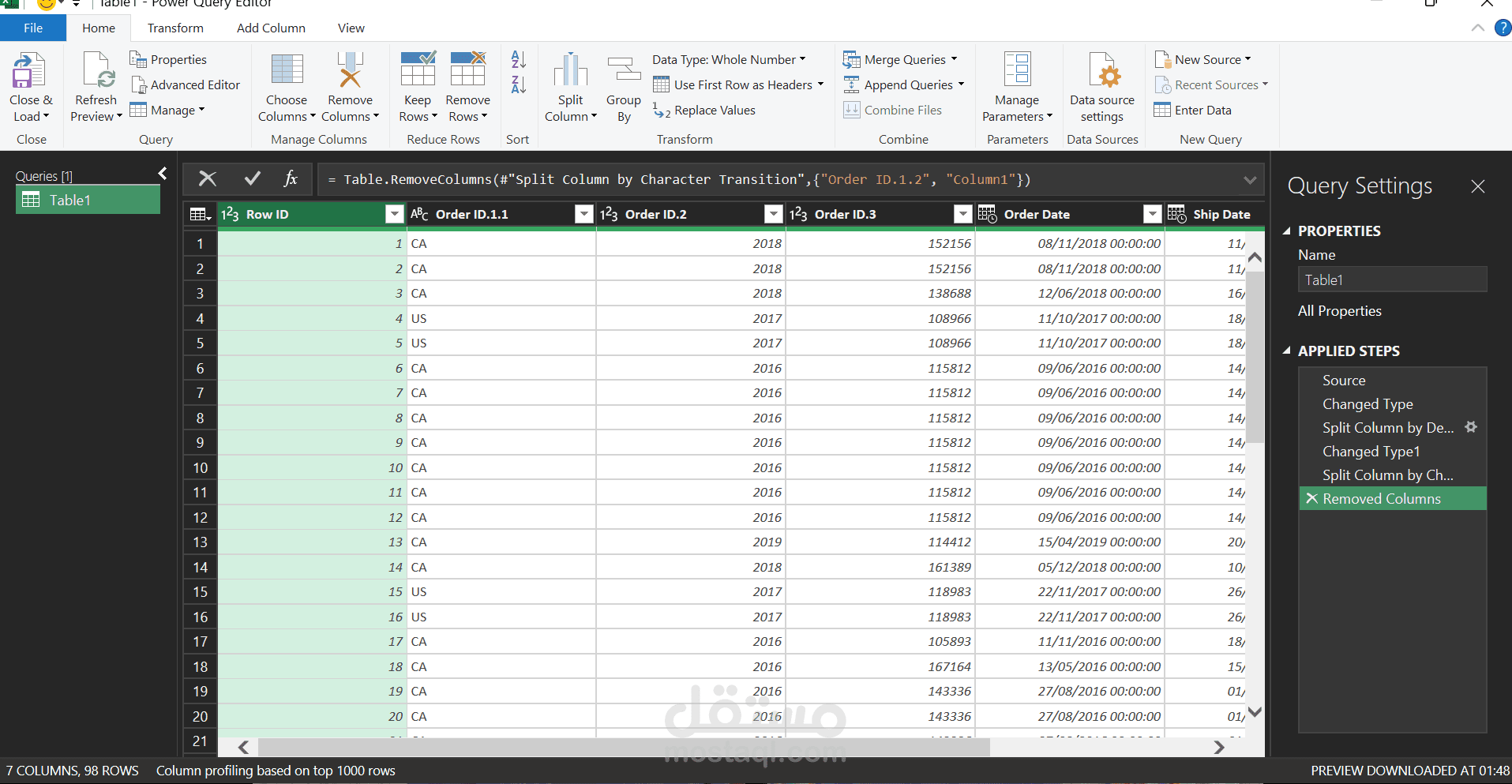
Power Query Data Transformation Steps
Step 1: Import the Data
First, the dataset was imported into Microsoft Excel Power Query Editor from the original table This step appears as
Source
Step 2: Change Data Types
After importing the data, the data types of the columns were adjusted to the appropriate format such as text, number, or date
This step appears as:
Changed Type
Step 3: Split Column by Delimiter
The Order ID column was split into multiple columns using a delimiter.
Steps:
Select the column.
Go to Transform.
Click Split Column.
Choose By Delimiter.
This created separate columns from the original Order ID.
This step appears as:
Split Column by Delimiter
Step 4: Adjust Data Types Again
After splitting the column, the new columns were assigned the correct data types.
This step appears as:
Changed Type1
Step 5: Split Column by Character Transition
Another transformation was applied to further split the column based on character transitions (letters and numbers).
Steps:
Select the column.
Go to Transform.
Click Split Column.
Choose By Character Transition.
This helps separate text values from numeric values.
This step appears as:
Split Column by Character Transition
Step 6: Remove Unnecessary Columns
Unnecessary columns that were not needed for the analysis were removed.
Steps:
Select the unwanted columns.
Go to Home.
Click Remove Columns.
This step appears as:
Removed Columns
Step 7: Load the Clean Data
Finally, the cleaned and transformed data was loaded back into Excel.
Steps:
Home → Close & Load